> For the complete documentation index, see [llms.txt](https://cloud-servers.ortusbooks.com/llms.txt). Markdown versions of documentation pages are available by appending `.md` to page URLs; this page is available as [Markdown](https://cloud-servers.ortusbooks.com/google/redhat-based-images/boxlang-with-commandbox.md).
# BoxLang with CommandBox
This Virtual Machine create a runnging ColdBox Site using BoxLang as server with bx-compat-cfml module using CommandBox for you. If you do not want a ColdBox site we will show you how to remove it and have your own site. For deploying this Virtual Machine you need to enable Google Compute API and have a project with billing enabled, if not have one follow this [link](https://cloud.google.com/?hl=en) also, you can get 300 USD of credits.
## Requirements
* To be subscribed to Virtual Machine offer
* Project Editor or Compute Admin roles in Google Cloud project
* A Service Account with `Cloud Infrastructure Manager Agent` `Compute Admin` and `Service Account User` roles
In Google Cloud Marketplace you find this Virtual Machine offer as [**BoxLang with CommandBox for RedHat**](https://console.cloud.google.com/marketplace/product/ortussolutions-public/boxlang-with-commandbox-redhat?hl=en\&inv=1\&invt=Ab30zA) or look for **Ortus Solutions, Corp** to look for out full catalog.
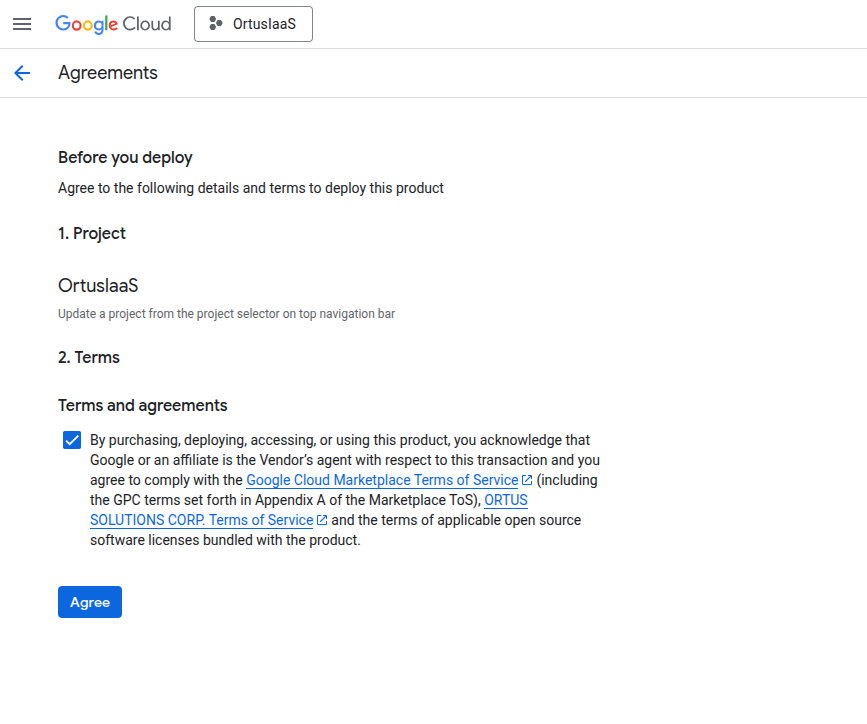
Accept Terms and agreements to subscribe to Virtual Machine offer
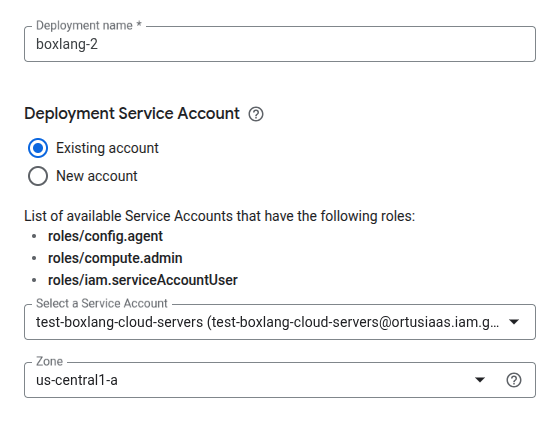
Deployment config: Set up your deployment with a name, use an existent service account or create a new one for deploying and select the Zone where you want to deploy your virtual machine
Machine type: Select Virtual Machine type and size for your Boot disk
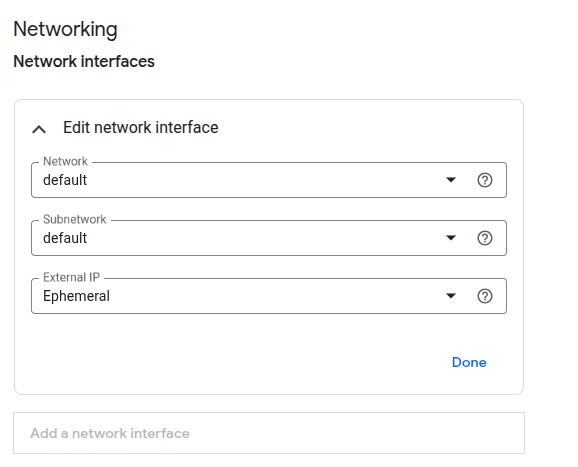
Networking: Select Network, Subnetwork and External IP configuration for your Virtual Machine
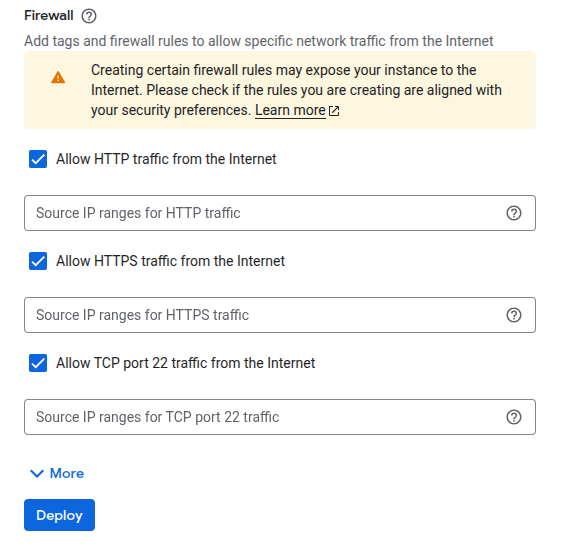
Finally select open ports to be available from internet
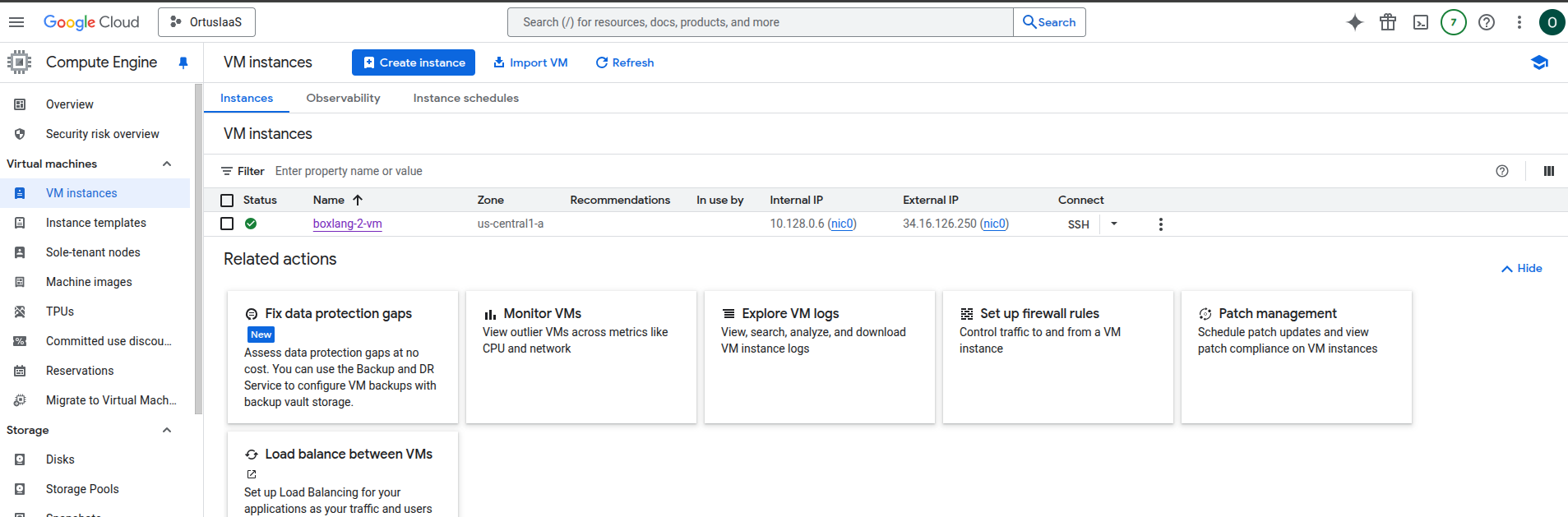
Once your Virtual Machine is deployed, you can view it from Google Compute Engine console. To connect through SSH, click in SSH button a side of your Virtual Machine. You can copy Private and Public IP to connect you at HTTP (80) port.
When connect through SSH using web console a new window is opened asking for authorize to load your Google Cloud user's SSH keys into virtual machine
| Asking for Authorization | SSH Connected Window |
| ---------------------------------------------------------------------------------------------------------------------------------------------------------------------------------------------------------------------------------------------------------- | ------------------------------------------------------------------------------------------------------------------------------------------------------------------------------------------------------------------------------------------- |
|  |  |
If you want to load your own SSH keys or connect to your Virtual Machone with differents SSH clients, follow this [link](https://cloud.google.com/compute/docs/connect/standard-ssh) for more information about it.
---
# Agent Instructions
This documentation is published with GitBook. GitBook is the documentation platform designed so that both humans and AI agents can read, navigate, and reason over technical content effectively. Learn more at gitbook.com.
## Querying This Documentation
If you need additional information that is not directly available in this page, you can query the documentation dynamically by asking a question.
Perform an HTTP GET request on the current page URL with the `ask` query parameter, and the optional `goal` query parameter:
```
GET https://cloud-servers.ortusbooks.com/google/redhat-based-images/boxlang-with-commandbox.md?ask=&goal=
```
`ask` is the immediate question: it should be specific, self-contained, and written in natural language.
`goal` is optional and describes the broader end goal you are ultimately trying to accomplish on behalf of the user. GitBook uses it to tailor the answer towards what is most useful for that goal.
The response will contain a direct answer to the question and relevant excerpts and sources from the documentation.
Use this mechanism when the answer is not explicitly present in the current page, you need clarification or additional context, or you want to retrieve related documentation sections.